
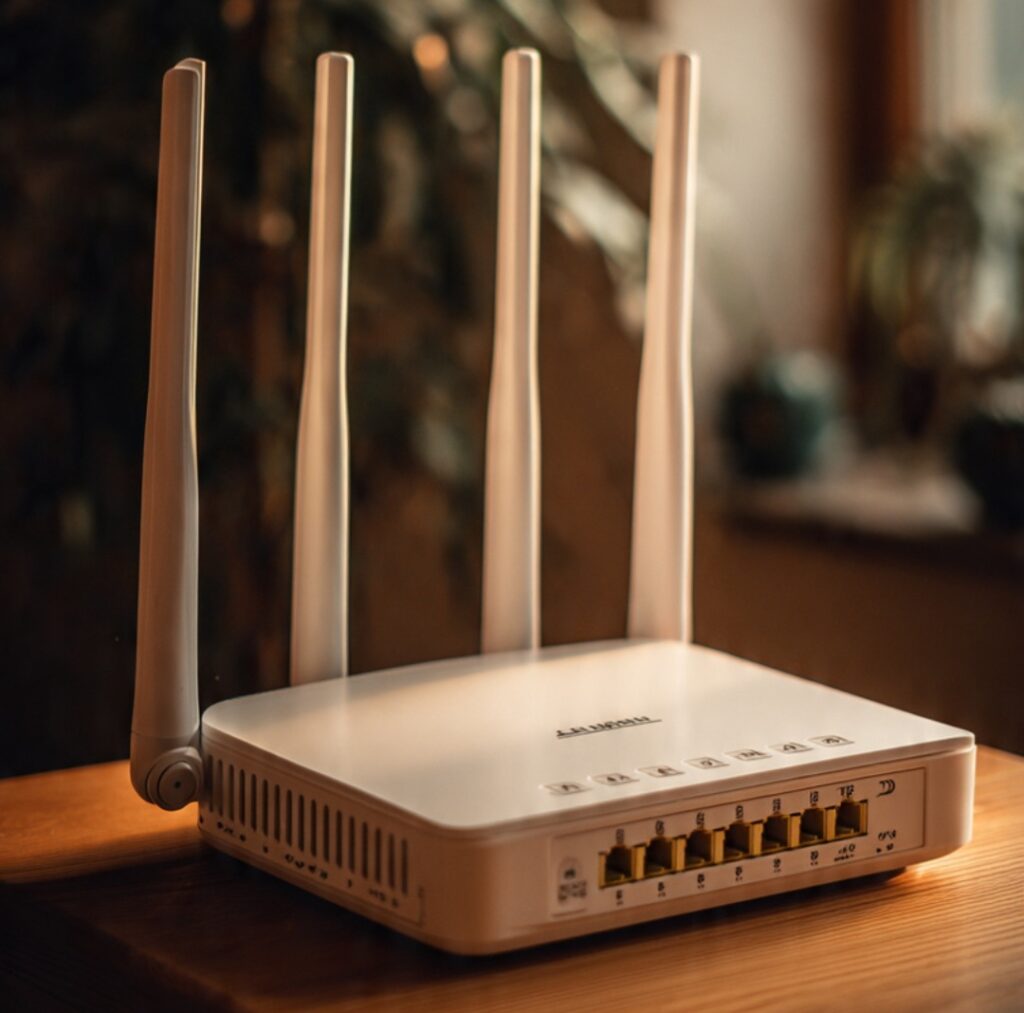

Whether you are setting up a new internet connection in Cairo, configuring a home network in Dubai, or troubleshooting Wi-Fi issues in Riyadh, one thing remains the same you need access to your router’s admin panel. The IP address 192.168.1.1 is the default gateway used by millions of routers worldwide to access the router’s control panel.
In this guide, we will walk you through everything you need to know about the 192.168.1.1 admin login process from what it is and why it matters, to a step-by-step login tutorial, common issues, and how to keep your network secure.
What Is 192.168.1.1?
The IP address 192.168.1.1 is a private IPv4 address commonly used as the default gateway for home and office routers. It belongs to the 192.168.x.x range, which is reserved for private networks and is not accessible from the public internet.
When you type this address into your browser, it connects you to the router’s built-in web interface — also known as the admin panel or router dashboard. From here, you can control virtually every aspect of your local network.
This default gateway is used by popular router brands available across Egypt and the Gulf region, including:
- TP-Link
- D-Link
- Linksys
- Huawei
- ZTE (commonly used with Etisalat, du, STC, and Vodafone Egypt)
- Netgear
Why Do You Need to Access 192.168.1.1?
Accessing your router’s admin panel allows you to manage and customize your home or office network. Here are the most common reasons users in Egypt, the UAE, Saudi Arabia, Kuwait, and Qatar access this page:
- Change Wi-Fi name (SSID) and password — Protect your network from unauthorized users
- Set up a new internet connection — Configure PPPoE or DHCP settings provided by your ISP
- Enable or disable guest networks — Create a separate Wi-Fi for visitors
- Update router firmware — Improve performance and security
- Set parental controls — Restrict certain websites or usage times for children
- Check connected devices — See who is using your Wi-Fi
- Configure port forwarding — Required for gaming, CCTV, or remote access
- Reboot or reset the router — Fix connectivity problems
How to Access 192.168.1.1 Admin Login — Step by Step
Follow these simple steps to log in to your router’s admin panel:
Step 1: Connect to Your Router
Make sure your device (laptop, smartphone, or PC) is connected to your router — either via Wi-Fi or an Ethernet cable. You cannot access the admin panel from outside your local network.
Step 2: Open Your Web Browser
Launch any web browser such as Google Chrome, Mozilla Firefox, Microsoft Edge, or Safari.
Step 3: Enter the IP Address
In the address bar at the top of the browser, type:
Press Enter. Do not use a search engine to search for this address type it directly in the URL bar.
Step 4: Enter Your Login Credentials
A login page will appear asking for a username and password. The default credentials for most routers are:
| Router Brand | Default Username | Default Password |
| TP-Link | admin | admin |
| D-Link | admin | (blank) |
| Linksys | admin | admin |
| Huawei | admin | admin |
| ZTE | admin | admin or user |
| Netgear | admin | password |
Note: If you or your ISP technician changed these credentials before, use those updated details. If you cannot remember them, you may need to reset the router (see below).
Step 5: Explore the Admin Panel
Once logged in, you will see the router dashboard. The layout varies by brand, but most panels include sections for:
- Wireless Settings
- WAN / Internet Settings
- LAN Settings
- Security / Firewall
- Device Management
- System Tools
What If 192.168.1.1 Does Not Work?
If the login page does not load, try the following solutions:
Check Your Default Gateway
Your router’s IP might not be 192.168.1.1. To find the correct IP address:
- Windows: Open Command Prompt and type ipconfig. Look for “Default Gateway.”
- Mac/Linux: Open Terminal and type ip route or netstat -rn.
- Android/iPhone: Go to Wi-Fi settings and tap your connected network to see the gateway IP.
Common alternative addresses include 192.168.0.1 and 10.0.0.1.
Other Troubleshooting Tips
- Clear your browser cache and try again
- Disable VPN — VPNs can interfere with local network access
- Try a different browser or open an incognito/private window
- Use an Ethernet cable instead of Wi-Fi for a more stable connection
- Restart your router and wait 60 seconds before trying again
How to Reset Your Router Password
If you have forgotten your router’s admin password, the only option is a factory reset. Here is how:
- Locate the small Reset button on the back or bottom of your router.
- Using a pin or paperclip, press and hold the button for 10–15 seconds.
- The router lights will flash, indicating a successful reset.
- Wait for the router to reboot fully (about 60 seconds).
- Log in using the default factory credentials printed on the label underneath your router.
Warning: A factory reset will erase all your custom settings, including your Wi-Fi name, password, and any configurations set by your ISP. You may need to reconfigure your internet connection after the reset.
How to Secure Your Router Admin Panel
Once you log in, it is strongly recommended to secure your router — especially if you live in a densely connected area such as an apartment building in Cairo, Dubai, or Jeddah.
Here are key security steps:
- Change the default admin password immediately to a strong, unique password
- Rename your Wi-Fi network so it does not reveal your router brand or location
- Use WPA3 or WPA2 encryption for your wireless network
- Disable remote management unless you specifically need it
- Keep firmware updated to patch known security vulnerabilities
- Enable the firewall built into the router
Frequently Asked Questions (FAQs)
Q: Is 192.168.1.1 the same as 192.168.l.l? No. The correct address uses the number 1 (one), not the letter l (el). Always type numbers in the address bar.
Q: Can I access 192.168.1.1 from my phone? Yes. Connect your smartphone to the router’s Wi-Fi, open your mobile browser, and type http://192.168.1.1 in the address bar.
Q: Is it safe to log in to 192.168.1.1? Yes, as long as you are on your own network. This address is only accessible within your local network and cannot be reached from the internet.
Q: What should I do if someone else changed my router password? Perform a factory reset as described above to restore the default credentials.
Conclusion
The 192.168.1.1 admin login page is your gateway to full control over your home or office network. Whether you are a homeowner in Alexandria, a small business owner in Abu Dhabi, or a tech-savvy user in Doha, understanding how to access and use your router’s admin panel is an essential skill in today’s connected world.
By following the steps in this guide, you can easily log in, customize your network settings, improve your Wi-Fi security, and resolve common connectivity issues — all without needing to call a technician.